Checking new devices on the NLIS database
If you have recently acquired new electronic identification (eID) devices (ear tags, legbands or rumen bolus’) for your animals, you should check these have been allocated to and appear in your NLIS account.
You can access these new eID devices by creating a Bucket File from your National Livestock Identification System (NLIS) account.
This creates a local list of the devices on your computer so you can record information such as weights, treatments or pregnancy testing results against each individual animal.
The Bucket File can also be used with any compatible farm management software systems you’re using.
Creating your Tag Bucket File
1. Log in to your NLIS homepage.
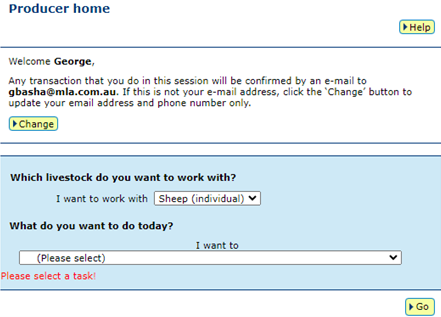
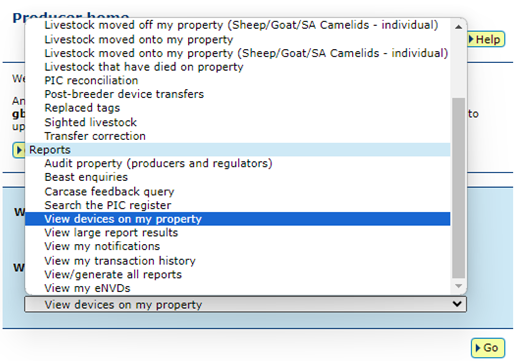
2. Select View devices on my property from the Reports section of the ‘What do you want to do today’ dropdown menu. Click Go to be taken to the View/generate all reports page.
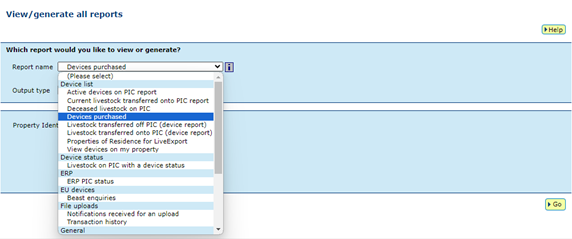
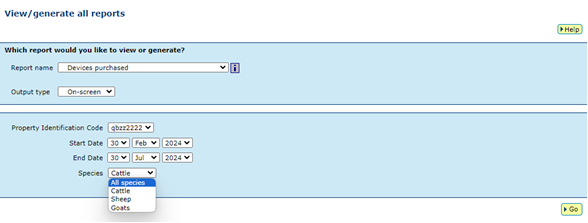
3. From the Report name dropdown menu, select Devices purchased.
4. Enter a date range for the report and select the relevant species. Click Go to see your results.
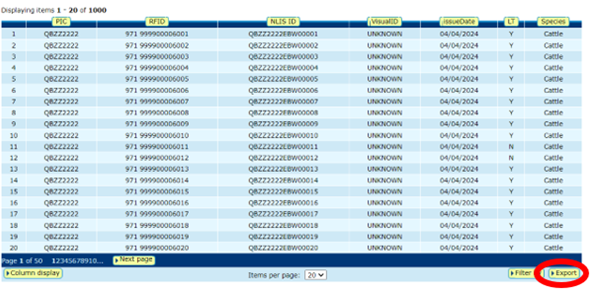
5. Your results will then be displayed, showing a list of all devices purchased. To create your Tag Bucket File, click on Export.
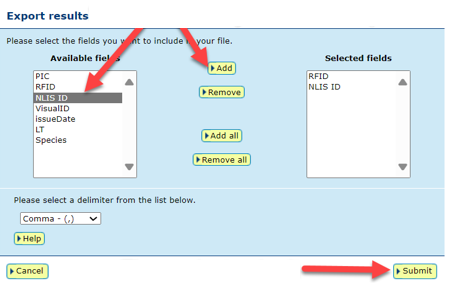
6. Select the data you wish to export to your Tag Bucket File and then click Submit to create your file. You will then have the option to either open or save your new Tag Bucket File.